Showing posts with label root. Show all posts

Friday, 4 August 2017

How To Root Any Mediatek Device And Unlock Bootloader


Presenting you a new and updated guide to root any Mediatek device, this process will allow you to root any Mediatek MT65xx and Mediatek 64-Bit MT67xx devices. This method will work to root almost any Android Version from Android 4.0 to Android 5.0+, I will also show you how to unlock bootloader in MT6580 and MTK 64-Bit MT67xx
I will be listing down some of the tools below which should allow you to root your device.
Please read the entire post before coming to any conclusion or before asking any questions
Things You Need :
- A Mediatek device with unlocked bootloader (Guide to unlock bootloader at the end)
- A PC is required for greater success rate
- ADB Drivers installed : Guide
- Drivers : Download
- USB Cable

Check If Bootloader is Unlocked :
- Open ADB Terminal
- Type "adb reboot bootloader"
- After it reboots
- Type "fastboot oem get-bootinfo"
- If it says your bootloader is unlocked you can proceed
- To reboot back type "fastboot reboot"
Guide to unlock bootloader at the end in case the booloader is locked
Note : 95% of MT65XX devices have unlocked bootloader so you do not need to worry.

Kingroot :
Kingroot is the most preferred rooting tool and is updated frequently with new patches to root newer android versions. Highly suggested to use this tool, it is able to root any Mediatek device including Android Lollipop. It is available for both Android ad Windows, it is suggested to use PC in order to root your device
Note : Please consider downloading using the below link to support my work :D
Download : Click Here


iRoot :
iRoot is another great rooting tool which I use to root my devices, this is my most preferred tool and it is also frequently update to support new devices and Android versions. It is available for both Android ad Windows, it is suggested to use PC in order to root your device
Note : Please consider downloading using the below link to support my work :D
Download : Click Here

Step by Step guide to use iRoot : Click Here

360 Root :
This is another great tool but it is in Chinese language but the steps are self explanatory and this tool is only for Mobile devices, the PC version does not work on devices with locale other than China but it has proved to work on many devices.
Note : Please consider downloading using the below link to support my work :D
Download : Click Here

Root Genius :
Another alternative if the above tools fail. It has been proved to root a few MT67xx 64-BIT devices.
Note : Please consider downloading using the below link to support my work :D
Download : Click Here


Rooting Script :
If any of the above rooting methods and tools do not work which is highly unlikely, please make sure your bootloader is unlocked and try the above methods again. If your bootloader is unlocked and you are still not able to root then use this manual method. I have been able to root unrootable MT6595 using this process.
Note : Even though the process is not for Mediatek devices it has proved to work on MT65XX and should work on MT67xx also.
Guide : Click Here


Manual Rooting :
This is the last and final option, if none of the tools work this is your only hope. Chances of success are low but not so low, it depends on your device if it is able to provide temporary access to the files you will be using to root. I have tried this method and it only worked for me in MT6582 but it wouldn't hurt to try.
Guide : Click Here


Rooting via Recovery :
This method will only work if have a Custom Recovery for your device which you can flash using SP Flash Tool. Once you have a custom recovery, boot into recovery mode and flash the ZIP 
Download ZIP : Click Here
Note : If you do not have scatter file of your device you can also flash recovery.img using the following method :
- Download recovery.img for your device
- Download the above ZIP
- Rename the recovery you downloaded to "recovery.img"
- Now open Command Prompt in the same folder as recovery.img
- Type "adb reboot bootloader"
- Type "fastboot flash recovery recovery.img"
- Type "fastboot reboot"
- Device will reboot
- Type "adb reboot recovery"
- Flash the above ZIP using recovery

To Unlock Bootloader :
Note : 95% of MT65XX devices have unlocked bootloader so you do not need to worry. MT6580 and some MT67XX devices require that you unlock the bootloader first otherwise your device cannot be rooted.

I) 
- Some MT6580 devices have a option to unlock bootloader, go to Settings > Developer options or in Settings > About Phone and turn OFF "OEM Lock"

Note : If there is no such options follow below methods :
II)
- To unlock bootloader you require a tool either made by your manufacturer or by someone

III)
- You need the unlock code, which you can get by contacting the manufacturer, some manufacturers don't provide the code so you are out of luck
a) Once you get the code you can unlock your device using the follow ADB commands :
b) Type "adb reboot bootloader"
c) After it reboots
d) Type "fastboot oem unlock ****************" (replace * with 16 digit unlock code)
e) Let the process complete
- Check if bootloader is unlocked using the below commands
a) Type "fastboot oem get-bootinfo"
b) If it says your bootloader is unlocked you can proceed

IV)
- In some devices bootloader can be easily be unlocked using the following method :
a) Type "adb reboot bootloader"
b) After it reboots
c) Type "fastboot oem unlock"
d) Let the process complete
- Check if bootloader is unlocked using the below commands
a) Type "fastboot oem get-bootinfo"
b) If it says your bootloader is unlocked you can proceed

Monday, 22 February 2016

App Rechteverwaltung | CyanogenMod 13 | Android Marshmallow

CyanogenMod 13 bringt uns ein mächtiges Rechtemanagement! Durch die Verwaltung der App-Rechte könnt Ihr euren Akku schonen aber auch eure persönliche Daten schützen. Ich werde euch das an einem Beispiel weiter unten zeigen...
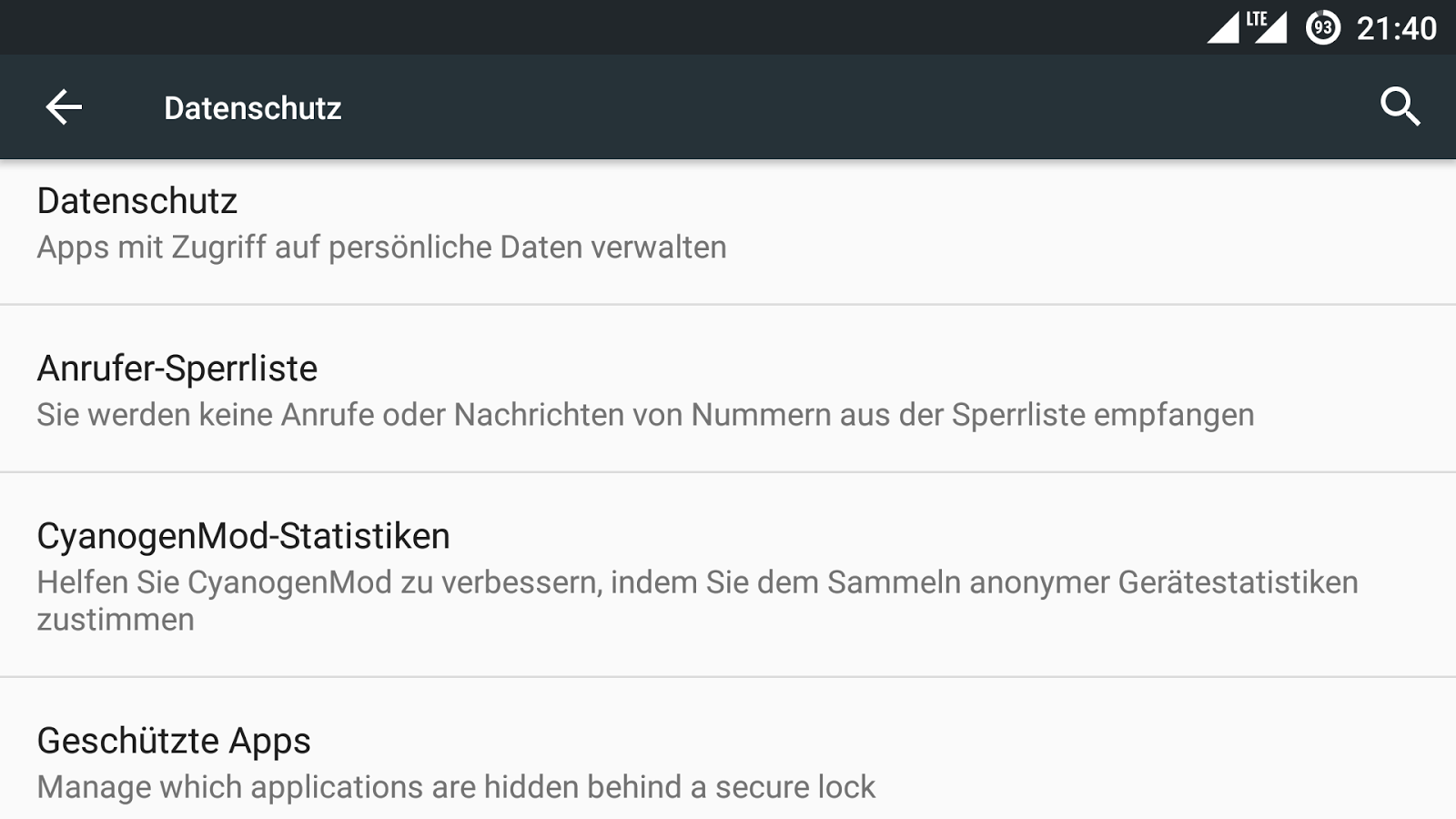
Einstellungen --> Nutzer --> Datenschutz
Hier wählen wir den Punkt Datenschutz
Ihr erhaltet eine Liste von allen Apps/Anwendungen auf eurem Smartphone (untere Bereich). Der erste Punkt sollte immer aktiviert werden (Standardmäßig aktivieren), genau wie der zweite (Benachrichtigung anzeigen). Warum? Das erkläre ich euch später genauer.

Wir klicken oben rechts auf die drei kleinen Punkte
Hier klickt Ihr bitte auf Erweitert
Jetzt bekommen wir eine viel bessere Übersicht. Im Bild oben sind wir jetzt unter dem Punkt STANDORT. Hier können wir sehen, welche App von uns wissen will, wo wir uns befinden. In erster Linie suchen wir Apps, welche wir installiert haben. Finden wir Sygic, Navigon, Google Maps, RegenRadar, usw. usf. dann ist das in Ordnung.
Gehen wir jetzt ein Stück weiter, wie z.B. zum Punkt SYSTEMSTART. Hier werden alle Apps aufgelistet, die nach einem Neustart automatisch mitstarten. Hier findet Ihr sehr viele unnötige Beiträge, welche euch einen haufen mAh und RAM kosten können.
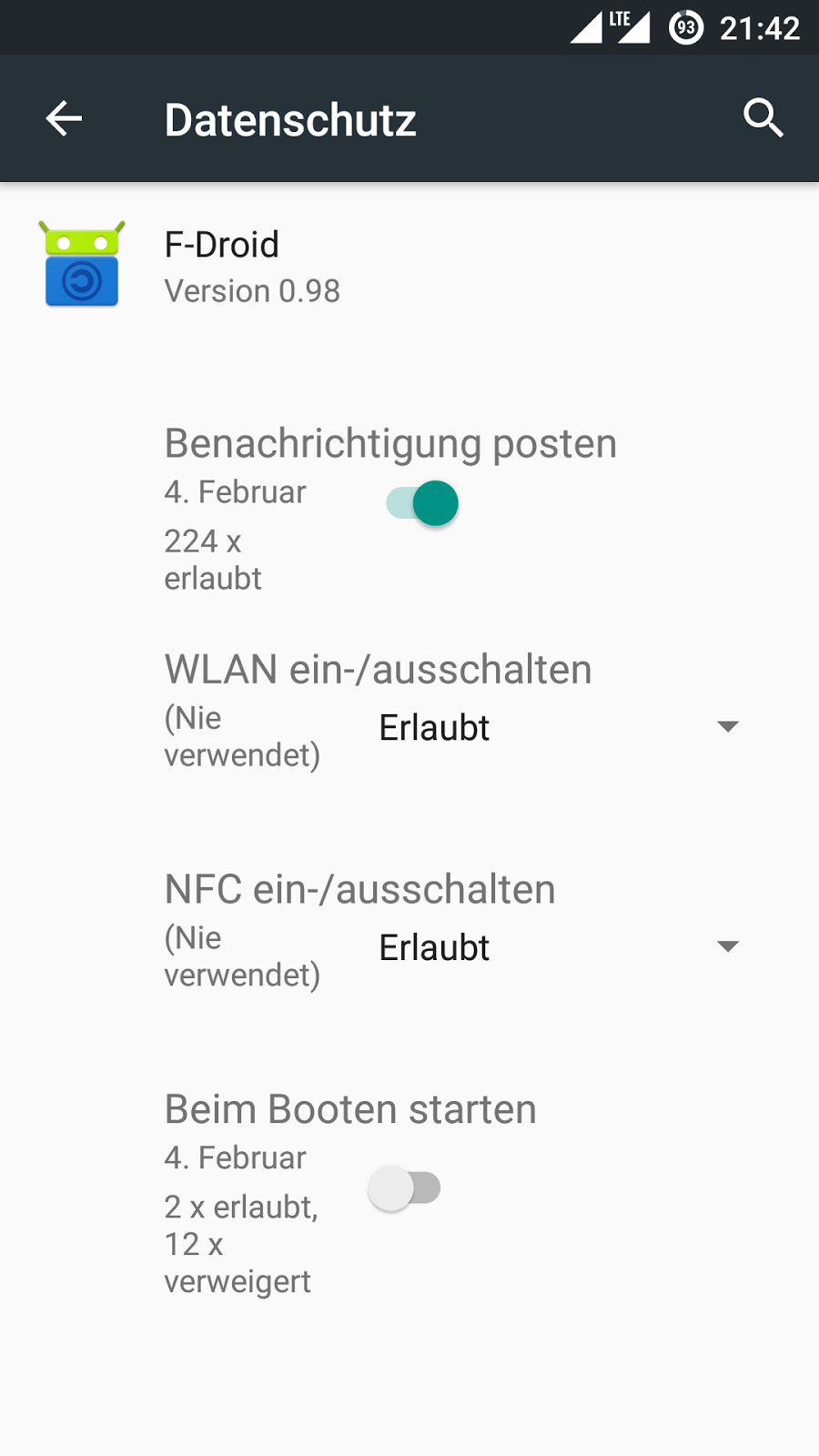
Hier findet Ihr aber auch alle Apps, welche Root-Zugriff haben (wie superuser bzw. SuperSU).
Klickt Ihr jetzt auf eine App, dann erscheint dieses Bild:
Ihr bekommt eine Übersicht über alle Rechte.
Habt Ihr den Punkt Standardmäßig aktivieren aktiviert, dann werden für jede App folgende Regeln hinzugefügt (auch für Apps die später erst installiert werden):
- Ungefährer Standort
- Kontakte lesen 
- Anrufprotokoll lesen 
- Kalender lesen 
- SMS lesen 
auf "Immer nachfragen" gestellt. Was bedeutet das? Ihr installiert euch eine App, wie zum Beispiel ein kostenloses Spiel und startet dieses. Plötzlich erscheint ein Fenster und dort steht "Spiel XY möchte Ihre SMS lesen - Ablehnen - Zulassen". Bei einigen Spielen kann das in Ordnung sein, wenn zum Beispiel das Spiel oder der Account per SMS aktiviert werden soll.
Ich gebe euch mal ein besseres Beispiel. Grundsätzlich setze ich bei Kamera, Standort und Audio (Mikrofon) auf immer Fragen und wie oben im Bild auf Benachrichtigung anzeigen.
Ich lasse mein Smartphone auf dem Tisch liegen und warte kurz. Schon will die erste App auf meine Kamera zugreifen, obwohl ich diese nicht einmal aufgerufen habe. Oft gibt es eine gute Erklärung bzw. das eigene Wissen ist zu klein, um zu verstehen, wieso das passiert. Auch dazu ein Beispiel:
Damals habe ich mich gefragt, wieso eine Shop-App meinen Standort wissen möchte. Ich dachte gleich an "Daten abgreifen und verkaufen", dabei will die App nur den ungefähren Standort wissen, um die Währung und die Versandkosten zu bestimmen, da Ware weltweit verkauft wird. Eigentlich mehr als klar, da meine ganze Anschrift bekannt ist aber so denkt man zu Beginn nicht...
In dem Fall oben habe ich keine Erklärung gefunden, selbst nach 2 Jahren nicht aber ich bin froh, das ich dank CyanogenMod selbst bestimmen kann, was eine App darf und was nicht!
Einige - besonders kostenlose - Apps funktionieren nicht einmal mehr, wenn einige Rechte entzogen werden. Besitzt man die Kaufversion der App, dann ist es aber jederzeit möglich und kein Problem.

Aus diesem Grund empfehle ich jedem sich damit etwas zu beschäftigen. Alleine euer Akku wird euch sehr dankbar sein, wenn 30 Apps nicht mitstarten müssen. Solltet Ihr euch nicht sicher sein, dann immer den Punkt "Immer nachfragen" wählen und beobachten, wann dieses Recht angefordert wird.

Wednesday, 17 February 2016

Root aktivieren | CyanogenMod 13 | Android Marshmallow

Wer CyanogenMod nutzt, der kann unter den Einstellungen den Root-Zugriff ohne großen Aufwand aktivieren. Ihr müsst nichts zusätzliches flashen! Verwechselt bitte nicht Cyanogen OS mit CyanogenMod, da das unter Cyanogen OS nicht so einfach möglich ist.
Im ersten Schritt müssen wir die Entwickleroptionen aktivieren.
Dazu rufen wir die Einstellungen auf und suchen den Punkt Über das Telefon (immer ganz unten in der Liste).
Hier suchen wir den Eintrag Build-Nummer. Hier einfach mehrfach mit dem Finger drauf klicken (schnell und hintereinander), bis dann die Meldung erscheint "Sie sind jetzt Entwickler".
Habt Ihr alles richtig gemacht, dann erscheint der Punkt Entwickleroptionen unter den Einstellungen (immer der Vorletzte Punkt). Wir klicken dann auf Entwickleroptionen...
Und hier suchen wir den Eintrag Root-Zugriff.
Wählt in der Liste Nur Apps aus und schon habt Ihr Root unter CyanogenMod 13.

Tuesday, 16 February 2016

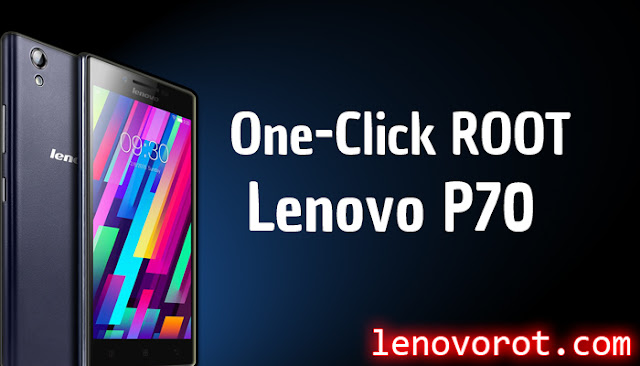
One click root Lenovo P70

how to root lenovo p70 one click

In this post I'll describe How to root Lenovo P70 easily.
It's simple as ABC by downloading APP which roots device then root with single click.

  1. So at first download on mobile KingRoot from this - LINK
  2. Make sure you're allowed Unknown sources to be installed in Settings - > Security - > Unknown sources


  3. Then go to install KingRoot APK 


  4. Then it takes around 2minutes and finally you need to have Rooted Lenovo P70 as you will see message on the screen Rooted successfully!


 Finally you will see this message! Root Successfully Mode: Lenovo P70-A


note: it might only work with Android KitKat 4.4 for now, Lollipop version not be rooted throught this APP.


Disclaimer: I'm or anyone not responsible for any damage on your phone!
advertisment

Friday, 3 July 2015

[Android 5.1.1] TWRP 2.8.7.1 recovery for Samsung Galaxy S6 edge


Finally Samsung Galaxy S6 G920F edge gets TWRP recovery , but with lots of bugs  . Samsung Galaxy S6 edge is the flagship phone of Samsung and it will be very popular , also it will get all the official support by the developers .


TWRP is a touch based custom recovery , which is used to Install custom roms and mods . You must be rooted to Install TWRP custom recovery .


Note - This recovery is for Samsung Galaxy edge ( G920F ) only . We are not responsible for Any damage caused to your Smartphone .

You must be rooted in order to Install TWRP recovery - Follow This guide to Root your Samsung Galaxy Edge

How to Install TWRP recovery on Samsung Galaxy S6 edge -

Follow This Guide to Install Android 5.1.1 TWRP on Samsung Galaxy S6 edge .

Wednesday, 27 May 2015

Dennis Rom for AT&T Samsung Galaxy S6


Samsung Galaxy S6 AT&T will surely have a great developer support on xda and developers has already started to make Custom Roms for Samsung Galaxy S6 AT&T version .


Thanks to Xda developer scrosler for sharing this Dennis custom rom for Samsung Galaxy S6 AT&T . The rom is based on Official Samsung Galaxy S6 firmware of Android 5.0.2 Lollipop . It is the lightest and fast custom rom for AT&T Samsung Galaxy S6 . It comes with tons of features .

Features of  Dennis Rom for AT&T Samsung Galaxy S6 -


  •  pre rooted
  •  de-bloated 
  •  busybox 
  •  removed knox
  •  was removed unnecessary applications
  •  and more...

Screenshots of  Dennis Rom for AT&T Samsung Galaxy S6 -


Note - We are not responsible for any damaged caused to your Smartphone , Do it on your own risk !

This rom is for AT&T ( Samsung Galaxy s6 only ) 


Prerequisite - First you must be Rooted and have Custom Recovery Installed on Your AT&T Samsung Galaxy S6 , If you don't know how to root or Install custom recovery , google it or find it at Xda .


How to Install Dennis Rom on AT&T Samsung Galaxy S6 -

Step 1. Download The Dennis Rom file for AT&T Samsung Galaxy S6 from below . 

Step 2. Now boot to Custom recovery by pressing volume up + Power + Home button at the same time !

Step 3. Clear data / Clear cache and select Install zip from sdcard .

Step 4. Choose Dennis Rom zip and Install it , then reboot your System after installation .

Step 5. Booting will take 5-15 minutes !


Downloads -

Dennis Rom  - Download Here


Wednesday, 13 May 2015

Adam Kernel for Samsung Galaxy S6

Samsung Galaxy S6 is getting amazing developer support , Recently It got a Custom Rom named - XtreStoLite Rom which is very fast and smooth .


Now wanam ( You know :p , who made xposed !) who makes kernel for Samsung Flagship device has made a new Kernel for Samsung Galaxy S6 G920F with Amazing featues .


To Install the Adam Kernel You can Go to its XDA thread , But remember the Information below , Before proceeding !


Note - We are not responsible for any damaged caused to your Smartphone , Do it on your own risk !

This kernel is for G920F ( Samsung Galaxy s6 only ) 


Prerequisite - First you must be Rooted and have Custom Recovery Installed on Your Samsung Galaxy S6 , If you don't know how to root or Install custom recovery , follow these below guides -

Saturday, 9 May 2015

Root Samsung Galaxy S6 via PingPong Root

Earlier we Share a method to Root Samsung Galaxy S6 , but that was so Complicated and anything wrong can brick your S6 .


PingPong Root is the one click root for all variants of Samsung Galaxy S6 , You have to just follow a simple Guide to Root your Samsung Galaxy S6 via PingPong Root .


Root Samsung Galaxy S6 via PingPong Root


Currently These Listed S6 firmwares are Supported -


  • G9200ZCU1AOD5
  • G9200ZHU1AOD3
  • G9200ZHU1AOD9
  • G920R4TYU1AOD3
  • G920IDVU1AOD1
  • G920FXXU1AOCV
  • G920PVPU1AOCF
  • G920TUVU1AOCG
  • G920VVRU1AOC3 
  • G920FXXU1AOBN
  • G920FXXU1AODG
  • G9209KEU1AOCI
  • G9209KEU1AODA
  • G9208ZMU1AOD5
  • G9208ZMU1AOCI
  • G920FXXU1AOD9
  • G920AUCU1AOCE

Follow this Guide to Root Your Samsung Galaxy S6 via PingPong Root - XDA Guide , you can also watch this video Guide .


Still having problem ? You can try the best method to Root Samsung Galaxy S6 ( Odin method ) .


Friday, 24 April 2015

Als Administrator ausführen | Ubuntu | Linux | Anleitung

Wer von Windows kommt, dem kennt "Als Administrator ausführen/starten/öffnen" sehr gut. Unter Linux ist das auch möglich aber in der Regel nicht nötig. Sollte es sich um einen USB-Stick oder eine Speicherkarte handeln, dann kann das schon eher der Fall sein.
Unter Linux Mint ist das von Werk aus möglich, einfach
Rechtsklick -> Als Systemverwalter öffnen
Passwort eingeben und auf Legimitieren klicken (Entertaste reicht auch).
Hier könnt Ihr schön den roten Balken sehen - Erhöhte Berechtigungen
Bei Anwendungen (Programme) werdet Ihr immer vom System aufgefordert euer Passwort einzugeben. Sobald Ihr "ins System eingreifen" wollt, ist dieser Bereich geschützt, mit dem Passwort, welches Ihr bei der Installation selbst gewählt habt. Selbst bei der Uhr erscheint dann die Aufforderung:
Für viele macht das wenig Sinn aber es ist halt die Regel - sobald etwas am System verändert werden soll, ist das Root-Passwort notwendig. Es kann ab und zu mal nerven aber es sichert euch bzw. euer System ab, somit nicht wirklich ein Nachteil.

Sollte es bei euch kein Linux Mint sein, dann geht bitte immer so vor:
1. Öffnet einen Ordner (spielt keine Rolle welcher das ist):
Sucht dort den Punkt "Über" oder oft auch "About"
In meinem Fall ist jetzt dieses Bild zu sehen. Mein Filemanager/Dateimanager wäre der Nemo.
2. Öffnet das Terminal und führt den Befehl gksu + name vom filemanager (Anleitung):
In meinem Fall wäre das gksu nemo, dann noch mein Passwort und ich habe Root-Rechte (als Administrator gestartet). Könnt auch anstelle von gksu ein sudo setzen aber dann erscheinen immer wieder Fehlermeldungen (funktioniert trotzdem alles - nervt nur auf dauer), was bei gksu nicht der Fall ist. Habt Ihr zum Beispiel Ubuntu, dann wäre es gksu nautilus.
Sollte es Fragen dazu geben, dann einfach schreiben.

Thursday, 23 April 2015

TWRP recovery for Samsung Galaxy S6 edge : How to Install

Finally Samsung Galaxy S6 G920F edge gets TWRP recovery , but with lots of bugs  . Samsung Galaxy S6 edge is the flagship phone of Samsung and it will be very popular , also it will get all the official support by the developers .


TWRP is a touch based custom recovery , which is used to Install custom roms and mods . You must be rooted to Install TWRP custom recovery .


Note - This recovery is for Samsung Galaxy edge ( G920F ) only . We are not responsible for Any damage caused to your Smartphone .

You must be rooted in order to Install TWRP recovery - Follow This guide to Root your Samsung Galaxy Edge

How to Install TWRP recovery on Samsung Galaxy S6 edge -

Method 1 - Install via Flashify

Step 1. Download Flashify from Play store .

Step 2. Install the application .

Step 3. Tap to Install recovery and choose TWRP image .

Step 4. The recovery will be download and will be start installing automatically !

Method 2 - Install via ODIN

Step 1. Download Odin and Recovery image file from below .

Step 2 . You must have Samsung latest Android drivers Installed , If not ! Download it from below .


Step 3.Switch off your S6 edge and  Now Boot your Samsung Galaxy S6 edge to Download mode , By pressing - Volume Down + Home + Power buttons at the same time .

Step 4 . Connect your Samsung Galaxy S6 edge to PC via USB cable .

Step 5 . Open Odin Software ( Will be present in a file Downloaded in Step 1. ) 

Step 6 . Select PDA and Select The TWRP file Downloaded in Step 1. 

Step 7 . Press Start in ODIN . 

The process will take approx 10-15 minutes .


Method 1 Downloads -

Flashify App - Play store

Mirror - Download Here

Method 2 Downloads -

Odin 3.10 - Download Here

Samsung Drivers Download Here

TWRP image - Download Here

Monday, 20 April 2015

KT-SGS6 Kernel for Samsung Galaxy S6

Samsung Galaxy S6 is getting amazing developer support , Recently It got a Custom Rom named - XtreStoLite Rom which is very fast and smooth .


Now ktoonsez ( Senior Xda developer ) who makes kernel for Samsung Flagship device has made a new Kernel for Samsung Galaxy S6 G920F with Amazing featues .


To Install the Kernel You can Go to its XDA thread , But remember the Information below , Before proceeding !


Note - We are not responsible for any damaged caused to your Smartphone , Do it on your own risk !

This kernel is for G920F ( Samsung Galaxy s6 only ) 


Prerequisite - First you must be Rooted and have Custom Recovery Installed on Your Samsung Galaxy S6 , If you don't know how to root or Install custom recovery , follow these below guides -

Monday, 13 April 2015

How to Install TWRP recovery on Samsung Galaxy S6

Finally Team Win now officially supports Samsung Galaxy S6 . Samsung Galaxy S6 is the flagship phone of Samsung and it will be very popular , also it will get all the official support by the developers .


TWRP is a touch based custom recovery , which is used to Install custom roms and mods . You must be rooted to Install TWRP custom recovery .


Also read - 

How To Unbrick / Install Stock Firmware Samsung Galaxy S6

How To Root Samsung Galaxy S6


So , if you want to Install TWRP custom recovery on your Samsung Galaxy S6 , there are two methods to do so , First one will be Odin flash able recovery and Second one is By Team win app . So head ahead -

How to Install TWRP recovery on Samsung Galaxy S6 -

Method 1 - Install via App

Step 1. Download Team win app from below .

Step 2. Install the application .

Step 3. Tap to Install TWRP recovery and choose your device .

Step 4. The recovery will be download and will be start installing automatically !


Method 2 - Install via ODIN

Step 1. Download Odin and Recovery image file from below .


Step 2 . You must have Samsung latest Android drivers Installed , If not ! Download it from below .


Step 3.Switch off your S6 and  Now Boot your Samsung Galaxy S6 to Download mode , By pressing - Volume Down + Home + Power buttons at the same time .

Step 4 . Connect your Samsung Galaxy S6 to PC via USB cable .

Step 5 . Open Odin Software ( Will be present in a file Downloaded in Step 1. ) 

Step 6 . Select PDA and Select The TWRP file Downloaded in Step 1. 

Step 7 . Press Start in ODIN . 

The process will take approx 10-15 minutes .


Method 1 Downloads -

TWRP App - Play store

Mirror - Download Here

Method 2 Downloads -


Odin 3.10 - Download Here

Samsung Drivers Download Here

TWRP image - Download Here

Tuesday, 7 April 2015

How to Root Samsung Galaxy S6

So , Newly launched Samsung Galaxy S6 is an awesome piece by Samsung . But Many users want additional from the Smartphone and that can be get through Root privilege only .


Root, SMG920F, SMG920T, SMGT925,  Samsung S6


Users can Install many apps , Xposed modules , Custom roms , Mods etc ,  that requires root . 


Note - By rooting , your Samsung Galaxy S6 will loose (void) warranty . Also we are not responsible for any damage caused to your Smartphone .

Prerequisites -

1. You Must have Samsung Galaxy S6 :p .

2. Your Battery must be at-least 50% Charged 

3. You must have a desktop ! 

How to Root Samsung Galaxy S6 -

Step 1. Download CF-Auto-Root files by Chainfire from below .

Step 2. Extract the packages downloaded in Step 1. . Extract it till you get .tar.md5 extension image file  .

Step 3. You must have Samsung latest Android drivers Installed , If not ! Download it from below .

Step 4.Switch off your S6 and  Now Boot your Samsung Galaxy S6 to Download mode , By pressing - Volume Down + Home + Power buttons at the same time .

Step 5. Connect your Samsung Galaxy S6 to PC via USB cable .

Step 6. Open Odin Software ( Will be present in a file Downloaded in Step 1. ) 

Step 7. Select PDA and Select The .tar.md5 file Downloaded in Step 1. 

Step 8.Press Start in ODIN and Your Samsung Galaxy S6 will Start rooting .

If your are having Problem - Refer this Installation Video

Downloads - 

Samsung USB drivers - Download Here

Samsung Galaxy S6 root packages -


Download latest root packages from - Here


How to Root Samsung Galaxy S6 edge

So , Newly launched Samsung Galaxy S6 edge is an awesome piece by Samsung . But Many users want additional from the Smartphone and that can be get through Root privilege only .


 SM-G925 , SM-G9250 ,SM-G925A , SM-G925F  , Root s6 edge


Users can Install many apps , Xposed modules , Custom roms , Mods etc ,  that requires root . 

Note - By rooting , your Samsung Galaxy S6 will loose (void) warranty . Also we are not responsible for any damage caused to your Smartphone .

Prerequisites -

1. You Must have Samsung Galaxy S6 edge :p .

2. Your Battery must be at-least 50% Charged 

3. You must have a desktop ! 

How to Root Samsung Galaxy S6 edge -

Step 1. Download CF-Auto-Root files by Chainfire from below .

Step 2. Extract the packages downloaded in Step 1. . Extract it till you get .tar.md5 extension image file  .

Step 3. You must have Samsung latest Android drivers Installed , If now ! Download it from below .

Step 4.Switch off your S6 edge and  Now Boot your Samsung Galaxy S6 edge to Download mode , By pressing - Volume Down + Home + Power buttons at the same time .

Step 5. Connect your Samsung Galaxy S6 edge to PC via USB cable .

Step 6. Open Odin Software ( Will be present in a file Downloaded in Step 1. ) 

Step 7. Select PDA and Select The .tar.md5 file Downloaded in Step 1. 

Step 8.Press Start in ODIN and Your Samsung Galaxy S6 will Start rooting .


Downloads - 

Samsung USB drivers - Download Here

Samsung Galaxy S6 edge root packages - Download Here