Showing posts with label marshmallow. Show all posts

Monday, 16 January 2017

Samsung Galaxy C7 Pro Launched! Why Liquid Cooling Required 😕?


Samsung Launches New Premium Mid Range SmartPhone Named Samsung Galaxy C7 Pro With Liquid Cooling System.

Specifications:
  • 5.7" Super AMOLED  FHD Display[1920x1080]
  • 2.2GHz Qualcomm Snapdragon Octa-Core 625 Processor
  • 4GB RAM
  • 64 GB Internal Storage
  • 16MP Rear Camera[F/1.9 Aperture]
  • 16MP Front Camera[F/1.9 Aperture]
  • 3,300 mAh Battery
  • Samsung Pay Support
  • NFC
  • Android 6.0.1 Marshmallow
Samsung Also Explained Why There Is A Liquid Cooling?
"High performance means high CPU power and high heat. To this end, we ensure that slim design at the same time, seeking more efficient equipment temperature control program. The G7 C7 Pro is designed to optimize the power consumption of the processor while introducing a more efficient heat pipe cooling system. Compared to the traditional way of the average temperature of graphite heat, heat pipe cooling system through the heat pipe fluid flow and heat absorption, efficient circulation cooling work, like a fever to your computer is equipped with a highly efficient water-cooled radiator."

Pre Orders For Samsung Galaxy C7 Pro Will Open Shortly In China,Currently No Info About Price & Availability In Other Countries.
Stay Tuned For More!

Source:-Samsung

Tuesday, 10 January 2017

Xiaomi Redmi Note 4 Will Launch On 19th January 😃😍!New Budget Killer?

After Redmi Note 3 Xiaomi Is Planned For Launch It's Redmi Note 4.
Currently Xiaomi Sent The Invitations For It's Event Which Are At Delhi On 19th January.
How,Ever In Invitation There Is No Information Which Product Will Be Launched But According To Rumors Definitely It Will Be Redmi Note 4.

Probable Specifications:-
  • 5.5" Full HD Display[1920*1080]
  • 2GB/3GB RAM
  • 16/64 GB Storage
  • 13MP Rear Camera
  • 5MP Front Camera
  • 4100mAh Battery
  • Android 6.0 With MIUI 8
  • IR Blaster
Now After Looking Specifications You All Are Thinking About What's The Difference Between Redmi Note 3 & Redmi Note 4.
There Is No Huge Difference Between Redmi Note 3 Vs Redmi Note 4.
But Major Difference Will Be Processor Because From Many Leaks In India There Will Snapdragon 625 Processor Which Is Less Powerful Than Snapdragon 650.
Actually Snapdragon 625 Processor Is Also Powerful Processor As Well As Battery Efficient
So,Xiaomi Will Downgrade The Processor For Improve Battery Life??😕😕
There Is Also An Option Available Like Snapdragon 652 Which Are Already In The
Le Eco Le 2 & CoolPad Cool1 Dual Devices.So,There Is Already Competitor In The Market.
Now,Final Option Is Snapdragon 653 Which Are Not Used In Any Budget Devices Yet So Xiaomi Used Snapdragon 653 In Redmi Note 4 & Price Will Same As Redmi Note 3 Then Before It Launch
It Will Budget Killer SmartPhone!
The Price For 2GB Version Is Rs.9999 & Rs.11999 For 3GB Version.(Same As Redmi Note 3)
Stay Tuned For More..

Wednesday, 16 November 2016

Vivo V5 20MP Selfie Phone!Pros & Cons?Worth To Buy 😕?


Yesterday Vivo Launched First 20 MP Selfie Camera Phone With Flash In India At Price Rs. 17,980.
It Will Be Available From Offline Market Starting November 26.
Vivo V5 Is A Upgraded Version Of The Vivo V3.
Vivo V5 Comes With Two Different Colours Space Grey And Crown Gold.

Specifications:-
  • 5.5" IPS HD Display[1280*720]
  • MediaTek 6750 Octa-core 64-bit Processor
  • 4GB DDR3 Ram
  • 13MP Rear Camera
  • 20 MP Front Camera
  • 3000 mAh Battery
  • Android Marshmallow
  • FingerPrint Scanner
Pros:-
  • 20MP Selfie Camera With Flash
Cons:-
  • Fast Charging Not Supported.
  • Very Old Processor
  • No Full HD Screen
  • High Price,Not Value For Money
  • Can't Play High End Games
  • Rear Camera Is Not Good
Worth To Buy?

No,Never.
At This Price Vivo V5 Gives Very Old Processor That Doesn't Support Full HD Display Even Not So Good For Multitasking At This PriceYou Can Easily Get Lenovo Zuk Z2LeEco Le Max 2 Which Comes With Snapdragon 820 Processor.
According To Me If You Are Selfie Lover,Vivo Fan & Want To Buy SmartPhone In Offline Market Then You Can Buy This Device Else There Is Nothing In This Device.


Saturday, 26 March 2016

Android 6.0.1 Marshmallow rolling out for Sprint Samsung Galaxy S6 edge +


Sprint is finally rolling out Android 6.0.1 Marshmallow update to Samsung Galaxy S6 edge + in the regions  . 


Image via 

The Update is of 1.4 GB and will update your Samsung Galaxy S6 edge + to Android 6.0.1 Marshmallow . The Update comes integrated with 1 March Security patch. 


via

Tuesday, 23 February 2016

App-Links | CyanogenMod 13 | Android Marshmallow

Neben den Standard-Apps gibt es die App-Links. Heute gibt es für fast alles eine App, ob PayPal, Amazon, eBay, Twitter, usw. usf. - alles kann direkt per App geöffnet werden aber was ist eigentlich, wenn ich das nicht möchte? 
Als Beispiel: Ich bekomme per WhatsApp einen Link zu Youtube, es handelt sich um ein Interview und dieses möchte ich mir im Hintergrund anhören (z.B. über Firefox for Android) aber immer wenn ich auf den Link klicke startet die Youtube App. Wie kann ich das ändern?
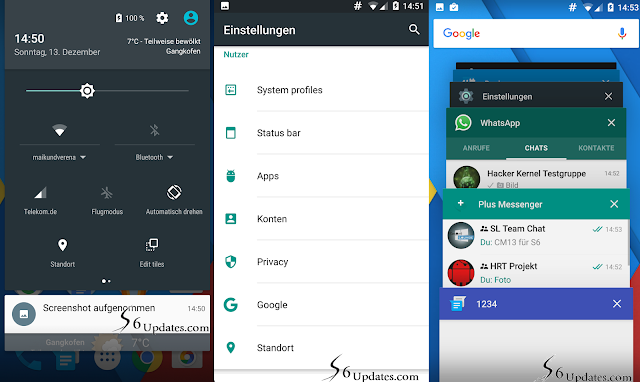
Einstellungen --> Nutzer --> Apps
Oben Rechts auf das Symbol für Einstellungen klicken
Und hier den App-Links aufrufen
Da ich das Beispiel Youtube zu Beginn genannt habe, suchen wir in der Liste Youtube.
Klickt Ihr jetzt auf Unterstützte Links öffnen
Erscheint dieses Feld. Hier könnt Ihr bestimmen, ob Youtube-Links immer mit der App geöffnet werden sollen, ob das System euch jedes mal vor dem öffnen fragen soll oder ob die App nicht verwendet werden soll. Wählt Ihr Jedes Mal fragen:
Dann würde das so aussehen.

Monday, 22 February 2016

Standard-Apps | CyanogenMod 13 | Android Marshmallow

Ihr habt oft mehrere Apps, welche die gleiche Funktion beherrschen. Eine Homepage zum Beispiel kann von dem vorinstallierten Browser geöffnet werden aber auch von Google Chrome, Firefox und Opera. Habt Ihr das nicht festgelegt, dann werdet Ihr jedes mal vom System gefragt.
Wählt Ihr NUR DIESMAL, dann erscheint jedes mal die Frage, wählt Ihr IMMER, dann passiert das immer mit der App, welche Ihr gewählt habt.
Wenn Ihr das ändern wollt, dann müsst Ihr so vorgehen:
Einstellungen --> Nutzer --> Apps
Oben rechts auf das Symbol für Einstellungen klicken
Hier auf Standard-Apps
Nun habt Ihr die Wahl zwischen Browser-App, SMS-App und App für Telefonie.
Alles andere wird über App-Links geregelt (oben Rechts in der Suchleiste nach App-Links suchen um mehr zu erfahren).

App Rechteverwaltung | CyanogenMod 13 | Android Marshmallow

CyanogenMod 13 bringt uns ein mächtiges Rechtemanagement! Durch die Verwaltung der App-Rechte könnt Ihr euren Akku schonen aber auch eure persönliche Daten schützen. Ich werde euch das an einem Beispiel weiter unten zeigen...
Einstellungen --> Nutzer --> Datenschutz
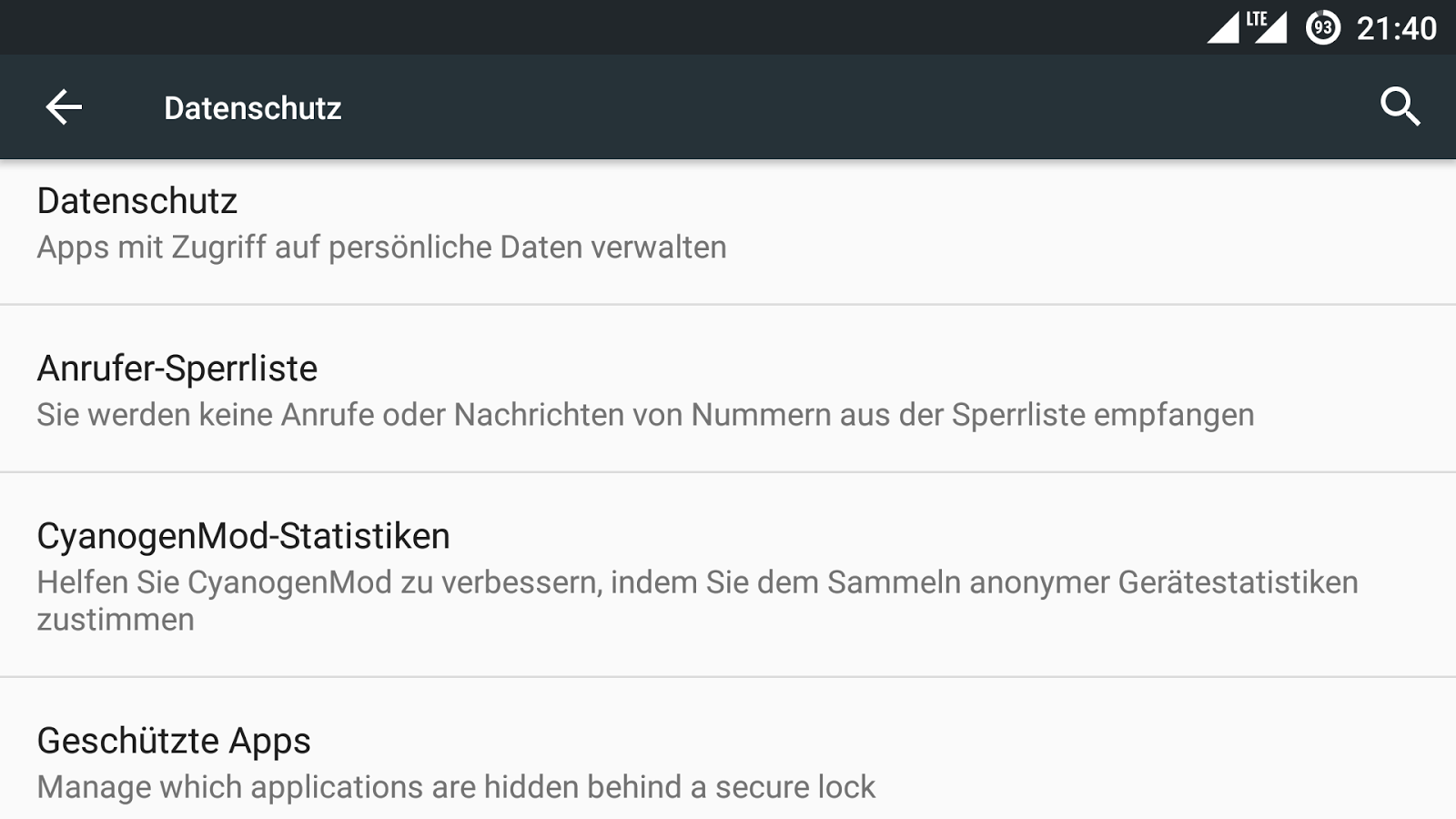
Hier wählen wir den Punkt Datenschutz
Ihr erhaltet eine Liste von allen Apps/Anwendungen auf eurem Smartphone (untere Bereich). Der erste Punkt sollte immer aktiviert werden (Standardmäßig aktivieren), genau wie der zweite (Benachrichtigung anzeigen). Warum? Das erkläre ich euch später genauer.

Wir klicken oben rechts auf die drei kleinen Punkte
Hier klickt Ihr bitte auf Erweitert
Jetzt bekommen wir eine viel bessere Übersicht. Im Bild oben sind wir jetzt unter dem Punkt STANDORT. Hier können wir sehen, welche App von uns wissen will, wo wir uns befinden. In erster Linie suchen wir Apps, welche wir installiert haben. Finden wir Sygic, Navigon, Google Maps, RegenRadar, usw. usf. dann ist das in Ordnung.
Gehen wir jetzt ein Stück weiter, wie z.B. zum Punkt SYSTEMSTART. Hier werden alle Apps aufgelistet, die nach einem Neustart automatisch mitstarten. Hier findet Ihr sehr viele unnötige Beiträge, welche euch einen haufen mAh und RAM kosten können.
Hier findet Ihr aber auch alle Apps, welche Root-Zugriff haben (wie superuser bzw. SuperSU).
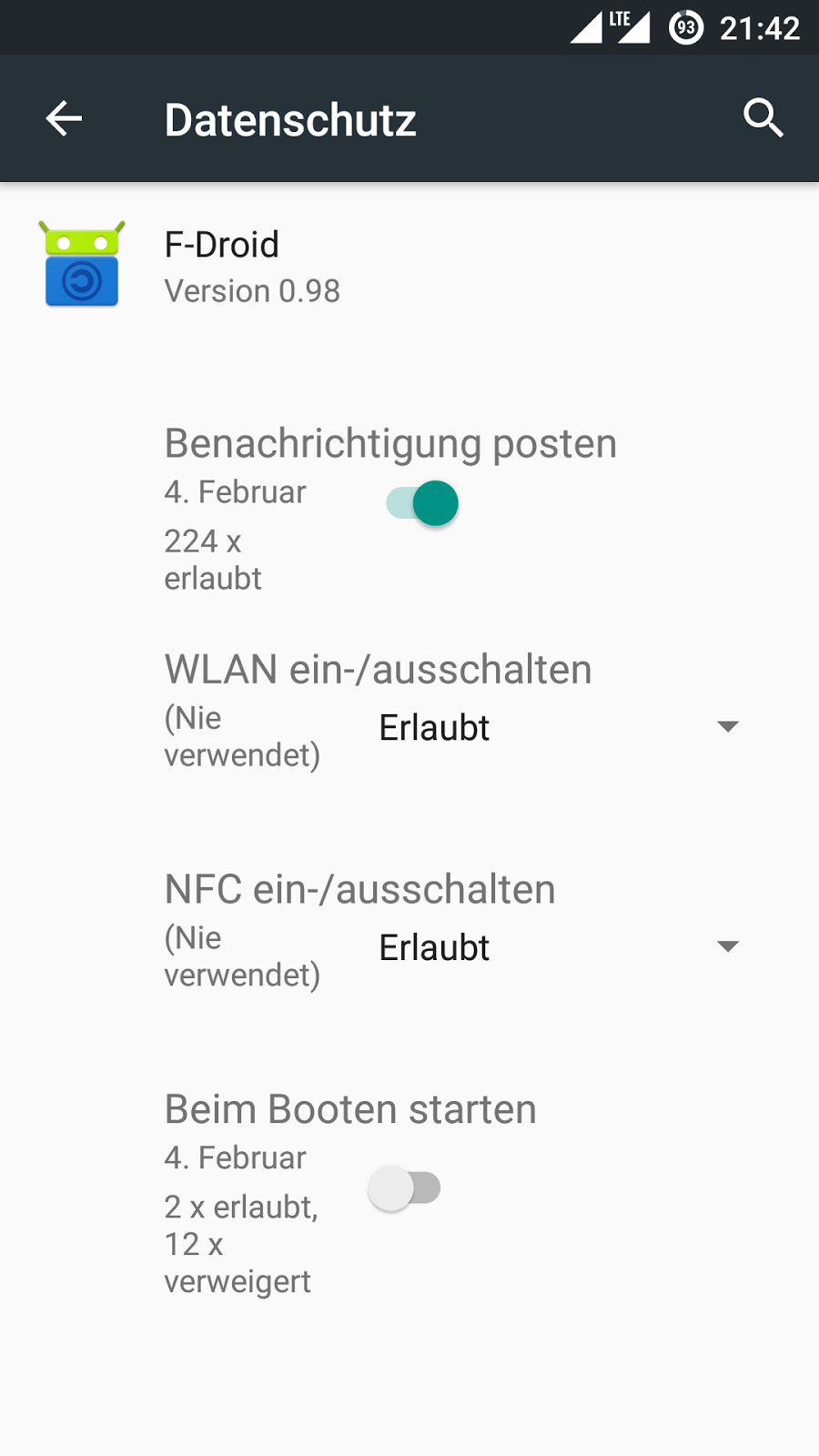
Klickt Ihr jetzt auf eine App, dann erscheint dieses Bild:
Ihr bekommt eine Übersicht über alle Rechte.
Habt Ihr den Punkt Standardmäßig aktivieren aktiviert, dann werden für jede App folgende Regeln hinzugefügt (auch für Apps die später erst installiert werden):
- Ungefährer Standort
- Kontakte lesen 
- Anrufprotokoll lesen 
- Kalender lesen 
- SMS lesen 
auf "Immer nachfragen" gestellt. Was bedeutet das? Ihr installiert euch eine App, wie zum Beispiel ein kostenloses Spiel und startet dieses. Plötzlich erscheint ein Fenster und dort steht "Spiel XY möchte Ihre SMS lesen - Ablehnen - Zulassen". Bei einigen Spielen kann das in Ordnung sein, wenn zum Beispiel das Spiel oder der Account per SMS aktiviert werden soll.
Ich gebe euch mal ein besseres Beispiel. Grundsätzlich setze ich bei Kamera, Standort und Audio (Mikrofon) auf immer Fragen und wie oben im Bild auf Benachrichtigung anzeigen.
Ich lasse mein Smartphone auf dem Tisch liegen und warte kurz. Schon will die erste App auf meine Kamera zugreifen, obwohl ich diese nicht einmal aufgerufen habe. Oft gibt es eine gute Erklärung bzw. das eigene Wissen ist zu klein, um zu verstehen, wieso das passiert. Auch dazu ein Beispiel:
Damals habe ich mich gefragt, wieso eine Shop-App meinen Standort wissen möchte. Ich dachte gleich an "Daten abgreifen und verkaufen", dabei will die App nur den ungefähren Standort wissen, um die Währung und die Versandkosten zu bestimmen, da Ware weltweit verkauft wird. Eigentlich mehr als klar, da meine ganze Anschrift bekannt ist aber so denkt man zu Beginn nicht...
In dem Fall oben habe ich keine Erklärung gefunden, selbst nach 2 Jahren nicht aber ich bin froh, das ich dank CyanogenMod selbst bestimmen kann, was eine App darf und was nicht!
Einige - besonders kostenlose - Apps funktionieren nicht einmal mehr, wenn einige Rechte entzogen werden. Besitzt man die Kaufversion der App, dann ist es aber jederzeit möglich und kein Problem.

Aus diesem Grund empfehle ich jedem sich damit etwas zu beschäftigen. Alleine euer Akku wird euch sehr dankbar sein, wenn 30 Apps nicht mitstarten müssen. Solltet Ihr euch nicht sicher sein, dann immer den Punkt "Immer nachfragen" wählen und beobachten, wann dieses Recht angefordert wird.

Wednesday, 17 February 2016

Root aktivieren | CyanogenMod 13 | Android Marshmallow

Wer CyanogenMod nutzt, der kann unter den Einstellungen den Root-Zugriff ohne großen Aufwand aktivieren. Ihr müsst nichts zusätzliches flashen! Verwechselt bitte nicht Cyanogen OS mit CyanogenMod, da das unter Cyanogen OS nicht so einfach möglich ist.
Im ersten Schritt müssen wir die Entwickleroptionen aktivieren.
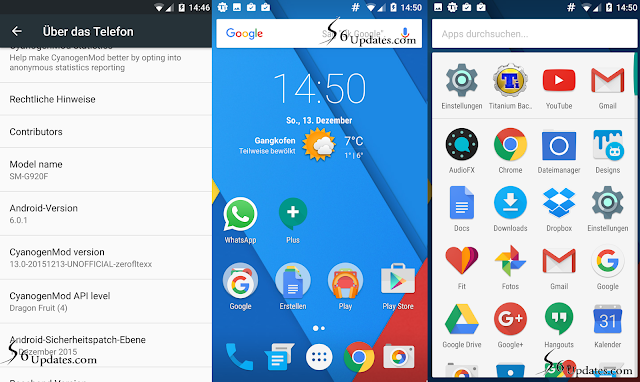
Dazu rufen wir die Einstellungen auf und suchen den Punkt Über das Telefon (immer ganz unten in der Liste).
Hier suchen wir den Eintrag Build-Nummer. Hier einfach mehrfach mit dem Finger drauf klicken (schnell und hintereinander), bis dann die Meldung erscheint "Sie sind jetzt Entwickler".
Habt Ihr alles richtig gemacht, dann erscheint der Punkt Entwickleroptionen unter den Einstellungen (immer der Vorletzte Punkt). Wir klicken dann auf Entwickleroptionen...
Und hier suchen wir den Eintrag Root-Zugriff.
Wählt in der Liste Nur Apps aus und schon habt Ihr Root unter CyanogenMod 13.

WLAN-Hotspot | CyanogenMod 13 | Android Marshmallow

Einstellungen --> Mehr 
Tethering & mobiler Hotspot
Klickt auf WLAN-Hotspot einrichten
Netzwerkname wählen, WPA2 PSK auswählen, ein Passwort setzen und mit Speichern bestätigen. 
Setzt Ihr ein Haken unter Mobile WLAN-Hotspot, dann wird der Hotspot aktiviert. 

Wednesday, 10 February 2016

Samsung Galaxy S6 and S6 edge getting Android 6.0 in Poland


T-Mobile has finally started rolling out Android 6.0 Marshmallow update for Samsung Galaxy S6 and Samsung Galaxy S6 edge in Poland .

Also Read - What's new in Android 6.0.1 Update ( via TechDroider )

Here are the changelog of Android 6.0 Update for Samsung -


  •  Android 6.0 (Marshmallow) 
  • Exercise greater control over app permissions 
  • Purchase easily and securely with Fingerprint support 
  • Experience enhanced battery-life through Doze 
  • Redesigned App Drawer


For now only S6 and S6 edge are receiving the update , Note 5 and S6 edge+ are the next to get the update .


via - Sammobile

Saturday, 30 January 2016

Samsung Galaxy S6 and S6 edge getting Android 6.0.1 in Korea


Samsung has finally started rolling out Android 6.0.1 Marshmallow update for Samsung Galaxy S6 and Samsung Galaxy S6 edge in Korea .


After the brief beta test program , Samsung is finally rolling out OTA updates for Android 6.0.1 . Android 6.0.1 comes with many changes over Android 6.0 .

Also Read - What's new in Android 6.0.1 Update ( via TechDroider )


For now only S6 and S6 edge are receiving the update , Note 5 and S6 edge+ are the next to get the update .


Wednesday, 23 December 2015

How to Manually update S6 and S6 edge to Official Marshmallow

Android 6.0 Marshmallow is now officially available for Samsung Galaxy S6 and S6 edge beta users in UK .


 However now each S6 and S6 edge user can Install official Marshmallow by just following some steps .

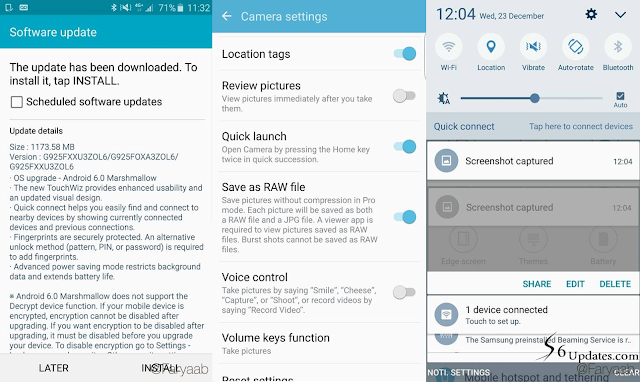
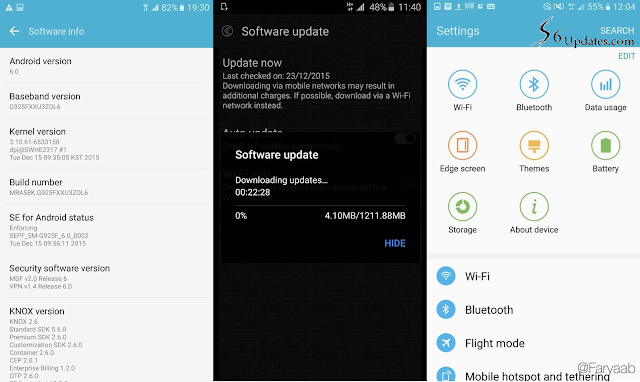
Screenshots -


How to Manually update S6 and S6 edge to Official Marshmallow -

Note - This will wipe all your data ( So make a backup before ) .


Step 1. Download Samsung Galaxy S6 and S6 edge UK ( 5.1.1 ) firmware from below .


Step 2. Turn off your Samsung Galaxy S6 / S6 edge .

Step 3. Reboot to recovery mode ( By Pressing Volume up+Home+Power ) 

Step 4. Clear all data and Cache .

Step 5. Now Boot to Download mode ( By Pressing Volume Down+Home+Power )

Step 6. Flash the firmware you downloaded following Step 1 via ODIN ( PC software ).

Note - If you don't know how to flash firmware via odin - Follow This link ( Guide + Download ) .

Step 7. Wait for your Smartphone to restart .

Step 8. Log in to your Galaxy Account .

Step 9. Download Latest Galaxy Care apk from below , Install it .

Step 10.Open the Galaxy Care app and Click on "Beta Participation " . Press Join and accept all the agreement .

Step 11. Wait for Samsung to send you a mail and then Start Updating your S6 / S6 edge to marshmallow ( By Going through Settings > System Updates ) .


Downloads -

UK Firmware - 

S6 - Download Here

S6-edge - Download Here

Galaxy Care apk - Download Here


Sunday, 13 December 2015

[Download] How to Install Cyanogenmod 13 Marshmallow on Samsung Galaxy S6

So , Cyanogenmod is finally available for Samsung Galaxy S6 . Cyanogenmod is a custom rom which provides pure Android Vanilla experience with additional features .


Thanks to Xda developer sktjdgns1189 for porting first ever Cyanogenmod Custom Rom for Samsung Galaxy S6 . 

Cyanogenmod 13 is based on Android 6.0.1 Marshmallow with some additional features .


What Works - ( Basic 2D graphics, Wi-Fi, AP hotspot, Audio, Microphone, SMS/MMS/Mobile Data(3G, LTE), Call(WIP - microphone not working), GPS, NFC, LED(WIP) MTP )

What Doesn't works - Camera, Sensors, Hardware accelerated video/audio encoding/decoding, Proper 3D graphics, Suspend(deep-sleep), Listing network operator , Everything else.

Screenshots -


Note - We are not responsible for any damaged caused to your Smartphone , Do it on your own risk !


Prerequisite - First you must be Rooted and have Custom Recovery Installed on Your Samsung Galaxy S6 ( Galaxy S6 International (SM-G920F/I, zerofltexx) Galaxy S6 SK (SM-G920S, zeroflteskt) Galaxy S6 KT (SM-G920K, zerofltektt) ) , If you don't know how to root or Install custom recovery , follow these below guides -


How to Install Cyanogenmod 13 Rom on Samsung Galaxy S6 -

Step 1. Download The Cyanogenmod 13 Rom file for Samsung Galaxy S6 from below . 

Step 2. Now boot to Custom recovery by pressing volume up + Power + Home button at the same time !

Step 3. Clear data / Clear cache and select Install zip from sdcard .

Step 4. Choose Cyanogenmod 13 Rom zip and Install it , then reboot your System after installation .

Step 5. Booting will take 5-15 minutes !


Downloads -

Cyanogenmod 13 Rom  - Download Here or Download Here ( Mirror ) .

Gapps - Download Here


via - XDA


Wednesday, 2 December 2015

Here's Marshmallow Screenshots from Samsung Galaxy S6

As we know that Samsung is working on Android 6.0 Marshmallow update for Samsung Devices and Samsung Galaxy S6 , S6 edge , S6 edge + and S6 active will get the update very soon .


Also Read - Features that Samsung Marshmallow will bring to Samsung devices


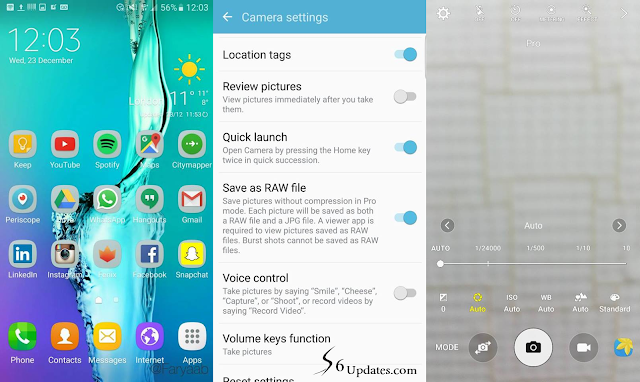
Here are some Screenshots that leaked online which shows Android Marshmallow Running on Samsung Galaxy S6 -


via | Source


Sunday, 29 November 2015

DN5 Rom for Galaxy S6/S6 edge with Marshmallow features

Recently Galaxy Note 5 Marshmallow firmware leaked and is available on XDA . But Electron team has finally ported Android Marshmallow feature on DN5 Custom rom for Galaxy S6 and Galaxy S6 edge .


Screenshots -


This is just fast and smooth Custom Rom that will bring Note 5 features along with Android 6.0 Marshmallow Touchwiz features on your Galaxy S6 and S6 edge .


For Downloads and Instructions follow -This Link


Saturday, 5 September 2015

Features that Android Marshmallow will bring to Samsung Devices

Google has already revealed new Android Marshmallow i.e Android 6.0 with Great features new interface .


Even Samsung is a great theme maker ( Touchwiz ) and will do its best in Making Android 6.0 Marshmallow more simpler and with new interface .

Samsung has also recently update S6 and S6 edge to new User Interface Same as S6 edge plus which is based on Android 5.1.1 Lollipop .


Samsung Has already revealed the list of features that Samsung Devices will get on Android Marshmallow 6.0 Update .


Even Samsung has announced list of devices that will get Android Marshmallow 6.0 .