Showing posts with label tool. Show all posts

Monday, 26 September 2016

MEGA Sync-Client installieren | Linux Mint 18

Ladet euch den MEGA Sync-Client auf der Homepage herunter. 
Nach dem Download erhaltet Ihr eine .deb Datei. 
Diese kann per Doppelklick einfach installiert werden. 
Wir benötigen libc-ares2 und libcrypto++9v5, damit MEGA richtig funktioniert. Sollte es also Probleme geben, dann das Terminal öffnen und den Befehl sudo apt-get -f install ausführen, wie im Bild oben. 
Dann müsst Ihr MEGASync starten und einrichten.
Auf Login bzw. Konto erstellen klicken...
Ob alles synchronisiert werden soll oder nur ein Ordner auswählen...
Überprüfen...
Und schon könnt Ihr MEGA nutzen bzw. den Client. 
Sollte euch das Icon/Symbol nicht gefallen, einfach Rechtsklick --> Eigenschaften --> auf das Symbol klicken und ersetzen (freie Wahl). 
Soll MEGA nicht mit dem System mitstarten, dann einfach Startprogramme aufrufen und
MEGASync abwählen. Natürlich könnt Ihr es auch wieder so aktivieren. 

Thursday, 22 September 2016

SP Flash Tool unter Linux Mint 18 | Anleitung

SP Flash Tool unter Linux Mint 18
Unter Linux lassen sich MTK-Geräte viel einfach flashen als unter Windows 10. Das liegt daran, das Ihr keine Treiber installieren müsst und auch nichts einstellen müsst (wie die Treibersignatur).
Schließt euer Gerät per USB an den Rechner. 
Im Terminal führt Ihr dann den Befehl lsusb aus und in der Liste muss MediaTek Inc. MTXXXX Preloader zu sehen sein. Die Zahlen spielen keine Rolle, nur das Preloader. 
Sollte bei euch nicht angzeigt werden, dann führt zur Sicherheit diesen Befehl aus:
sudo apt-get install libusb-dev
In der Regel ist das nicht notwendig, da libusb bereits alle Treiber mitbringt. Falls das ein Problem sein sollte (ganz neue MediaTek-Geräte), dann eben diesen Link verwenden und wieder anschließen. 
Wenn Ihr das Tool heruntergeladen habt, dann erst einmal entpacken und wie oben im Bild
Rechtsklick --> Im Terminal öffnen
Mit dem Befehl ./flash_tool startet Ihr das SP Flash Tool. 
Wenn Ihr euer Gerät nicht testen wollt, dann ist ein sudo davor notwendig --> sudo ./flash_tool 
Das soll keine Flash-Anleitung sein. Achtet im Forum einfach darauf, wie es beschrieben wird. Ich will euch hier nur zeigen, wie Ihr alle Treiber installiert und das SP Flash Tool installiert bzw. startet. 
Getestet habe ich unter Ubuntu 16.04 sowie Linux Mint 18, wie oben in den Bildern zu sehen. Ich persönlich habe auch schon Geräte geflasht, deshalb kann ich euch noch zwei Tipps geben. 1. Niemals einen USB-Hub verwenden und kein USB 3.0/3.1 (am Rechner). 
2. Nichts tun, bis euch das SP Flash Tool die Bestätigung ausgibt, wie im Bild zu sehen. 
Das Terminal-Fenster darf nicht geschlossen werden, so lange das SP Flash Tool arbeitet. Hier könnt Ihr auch weitere Informationen entnehmen. 
Passt gut auf, da Ihr damit auch eure Geräte zerstören könnt aber das findet Ihr ja alles in den Anleitungen. 

Sollte es Fragen geben (nur zum Programm und den Treibern), dann schreibt ruhig. 

Thursday, 30 June 2016

EMMC Flash Tool

Download EMMC  flash tool latest version with USB drivers

free download
eMMC DL Tool is a small flashing software that allows you to Flash or install Stock Firmware on Qualcomm Devices (including smartphone and tablets). This is the best platform for downloading the latest version of eMMC Flash Tool that works on Windows XP, Windows Vista, Windows 7, Windows 8, 8.1 and Windows 10 along USB Drivers .

Below are the Direct Links For Downloading The EMMC Flash Tool

Tuesday, 28 June 2016

RDA IMEI Repair Tool with USB Driver free Download

Best Tool For Repair RDA Chipset IMEI , MBSN , PSN , and LCD

This is the best platform for downloading the latest version of RDA IMEI Repair Tool .
RDA IMEI Repair Tool is used to Repair IMEI On All RDA Devices of all Brand . this is the best tool for repair the IMEI of RDA Devices . so Download and enjoy .

Supported Android Devices by this Tool are listed Below :-

Karbonn

  • Karbonn A104 
  • Karbonn A108
  • Karbonn A109
  • Karbonn A110

Videocon

  • Videocon Zest Lite

Intex

  • Intex Aqua P2 
  • Intex Aqua P3 
  • Intex Aqua R2
  • Intex Aqua R3
  • Intex Aqua R4 
  • Intex cloud N4
  • Intex Aqua X15
  • Intex cloud Bloom

Spice

  • Spice Mi 348e
  • Spice Mi 401  
  • Spice Mi 403e 
  • Spice Xlife 350 
  • Spice Xlife 405 

Lava


FOLLOW US ON              FACEBOOK
TRY OUR ANDROID      APP
credit:- by welcome zone haldwani on www.androidflashfile.com

    Some Features of RDA IMEI Repair Tool

    • By the help of this tool you can repair IMEI on All RDA Chipset devices .
    • As well as  MBSN , PSN and LCD NAME also repaired by this Tool .

    Below are the links for Download the RDA IMEI Repair Tool

    RDA IMEI Tool
    RDA USB Drivers
    PASSWORD TO OPEN WINRAR FILE => androidflashfile.com

    SEE ALSO :-

    How To Use This Tool Full procedure

    Monday, 27 June 2016

    Livesuit flash Tool all versions windows and linux Download

    Livesuit flash tool for installing image ( .img ) flash file into a smartphone

    livesuit tool download

    This is the best platform for downloading latest and the old version of Livesuit flash tool .
    Livesuit flash tool is used to flash stock firmware on Allwinner Chipset Devices ( Like A10 , A13 , A20 , A31 chipsets).

    FOLLOW US ON              FACEBOOK
    TRY OUR ANDROID      APP

    Some Features of Livesuit flash tool

    By the help of this tool you can flash stock firmware (original rom) on Allwinner Chipset devices .

    Below are the links for Download the Livesuit flash Tool 

    Download LiveSuit Tool for Linux

    Download LiveSuit Tool for Windows

    Download LiveSuit Tool for Mac

    PASSWORD TO OPEN WINRAR FILE => androidflashfile.com

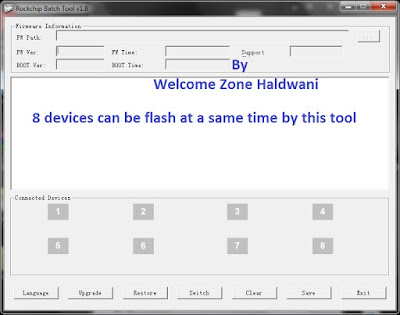
    RockChip Batch flash Tool all versions latest setup Download

    RockChip Batch flash Tool for installing image ( .img ) flash file into a smartphone

    full setup download

    This is the best platform for downloading latest and the old version of RockChip Batch flash Tool .
    RockChip Batch flash Tool is used to flash stock firmware on RockChip Devices ( Like RK29, RK30, RK31 Chipset Devices ).

    Some Features of RockChip Batch flash tool

    Installation of image file - By the help of this tool you can flash stock firmware (original rom) on RockChip Devices .


    Multiple Upgrade System - This Tool helps You to flash or upgrade multiple devices at the same time . Simply , Load all the devices to the computer, and RockChip can detect multiple devices automatically. Once your devices is detected by RockChip tool , then Click on "Upgrade" or "Restore" to perform the multiple flashing process at a same time .

    FOLLOW US ON              FACEBOOK
    TRY OUR ANDROID      APP

    Below are the direct links for downloading the RockChip Batch flash Tool from high speed server direct and free

    Rock_chip_all_versions_with_drivers => This is the full package of all the versions with usb drivers

    RockChip Batch Tool Drivers

    RockChip Batch Tool v1.5

    RockChip Batch Tool v1.7

    RockChip Batch Tool v1.8

    PASSWORD TO OPEN WINRAR FILE => androidflashfile.com

    SEE ALSO

    How To Use This Tool Full procedure

    FOLLOW US ON              FACEBOOK
    TRY OUR ANDROID      APP

    Saturday, 25 June 2016

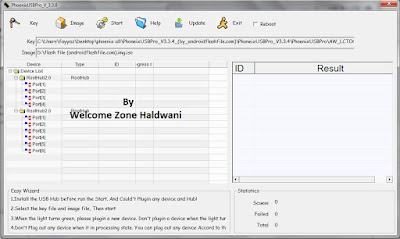
    Phoenix usb Pro flash tool all version latest setup download

    Phoenix USB Pro flash tool for installing image ( .img ) flash file into a smartphone

    phoenix download

    This is the best platform for downloading latest and the old version of PhoenixUSB Pro .
    Phoenix USB Pro flash tool is used to flash stock firmware on Allwinner Chipset Devices ( Like A10 , A13 , A20 , A31 chipsets).

    FOLLOW US ON              FACEBOOK
    TRY OUR ANDROID      APP

    Some Features of Phoenix USB Pro flash tool

    By the help of this tool you can flash stock firmware (original rom) on Allwinner Chipset devices .

    Use and need of key -The Previously versions of  Phoenix USB Pro flash tool needs a Key to use the tool but in the latest version ( v4.0.0 ), there is no need of key this is a pre activated version .


    Below are the links for Download the Phoenix USB Pro flash Tool 

    Phoenix USB Pro with Key portable

    Phoenix USB Pro v3.0.1

    Phoenix USB Pro v3.3.3

    Phoenix USB Pro v3.3.4

    PhoeniX USB Pro v4.0.0 => Latest Version

    PASSWORD TO OPEN WINRAR FILE => androidflashfile.com

    Friday, 24 June 2016

    Qualcomm Sw Upgrade tool full setup download

    Download the best qualcomm flashing tool from here . this is the highest working and tested tool with Qualcomm smartphone

    Brief Descriptions of Upgrade Process (Please read the followings for the detailed process) 

    1. Install the USB driver of phone (Download)
    2. Open the upgrade tool, select the Software path and the download port, Save the setting items (Flash File)
    3. Before click the “Start” button ,we should be confirm phone power on and connect pc;
    4. After upgrade is finished, input the mobile phone secret code to check the version. 

    Download This Tool From HERE
    PASSWORD TO OPEN WINRAR FILE => androidflashfile.com

    FOLLOW US ON              FACEBOOK
    TRY OUR ANDROID      APP

    For User Manual Guide Of Qualcomm Sw Upgrade Tool With Images Click HERE

    SEE ALSO


    Monday, 25 April 2016

    Bootloader entsperren | Xiaomi | MIUI | Anleitung

    In Zukunft werden alle Bootloader geschlossen und das ohne Ausnahme! Einige Geräte werden sogar nach einer Firmware-Update gesperrt. Xiaomi muss das tun, weil das Vorgaben von Google sind und MIUI eben Android ist. Die Behauptung, dass das Händler davon abhalten soll "versäuchte Firmware" zu verteilen, ist falsch, da es immer Wege geben wird - auch wenn es nicht mehr so einfach sein wird. Eine Vendor ROM gibt es weiterhin (siehe hier).
    In diesem Artikel soll erklärt werden, wie man den Bootloader entsperrt, unter Windows, da es momentan keine Möglichkeit für Linux gibt. Wer also keinen Dual-Boot nutzt, der hat leider Pech gehabt und muss warten.

    Anleitung auf eigene Gefahr! Mit dem Flashen einer Custom-ROM/einem Custom-Recovery/entsperren des Bootloaders verliert Ihr die Garantie und Gewährleistung auf euer Gerät! Weder ich, noch sonst irgendwer übernehmen eine Haftung, für irgendwelche Schäden, die durch das befolgen dieser Anleitung geschehen! 

    Wir benötigen einen Xiaomi Account und müssen einen Antrag stellen. Wie Ihr kostenlos einen Account erstellen könnt, wird euch hier erklärt. Die Anfrage und das MiUnlock Tool könnt Ihr hier beantragen/herunterladen. Empfohlen wird Windows 7, 8 und 10 - in der 64-bit Version.
    Nach dem Download entpackt Ihr die Datei.
    Startet MiflashUnlock als Administrator
    Durchlesen und bestätigen oder ablehnen. Solltet Ihr damit nicht einverstanden sein, dann wird das Tool geschlossen.
    Meldet euch mit eurem Xiaomi-Account/Mi-Konto an.
    Jetzt müsst Ihr kurz warten, bis überprüft wird, ob euer Account freigeschaltet wurde.
    Pro Account können alle 30 Tage 1 Gerät entsperrt werden.
    Sollte dort stehen "Your deivce isn't supported by Mi Unlock" müsst Ihr auf Go klicken.
    Im Browser selbst klickt Ihr auch Unlock Now
    Hier müsst Ihr euren Namen eingeben, Land, Rufnummer (mobil) und den Grund, wieso Ihr den Bootloader entpserren wollt. Ihr solltet den Grund nicht einfach kopieren, sondern einfach in eigenen Worten erklären, was Ihr mit eurem Gerät vor habt.
    Ihr bekommt jetzt eine SMS.
    Code kopieren und hier einfügen:
    Mit Next bestätigen. Sollten 5 Minuten vergangen sein, dann einfach auf Resend klicken.
    Das wäre eure Bestätigung "Apply for unlocking permissions". Klickt auf Go to Forum und speichert euch die Seite ab (weiter unten gibt es eine Erklärung).
    Sobald eure Anfrage bearbeitet wurde bekommt Ihr eine SMS, wie oben im Bild zu sehen.
    Meldet Ihr euch jetzt beim Tool an - wie zu Beginn - dann werdet Ihr dieses Bild sehen.
    Ich hab die Anfrage am 20.03.2016 gestellt und am 31.03.2016 die Bestätigung erhalten. Sollte es nach 12 Tagen keine Rückmeldung geben, dann einfach mal probieren, ob euch ein anderes Bild angezeigt wird (beim Unlock Tool) und sollte das nicht der Fall sein, dann ins Forum gehen und nachfragen (deshalb sagte ich speichert euch die Seite ab). Ihr müsst euch bei dem Forum nicht anmelden, einfach euren Xiaomi-Account verwenden.

    Schaltet euer Smartphone aus, wartet kurz, Lautstärkeregler - (leiser) gedrückt halten und Power-Taste drücken, um das Gerät zu starten. Erst los lassen, wenn dieses Bild zu sehen ist:
    Verbindet euer Smartphone/Tablet mit dem Rechner.
    Verwendet dabei kein USB-Hub und kein USB 3.0 oder 3.1
    Beim ersten mal dauert es ein wenig, weil Windows noch die Treiber installiert. Sobald euer Gerät gefunden wird, wird euch angezeigt, dass das Gerät verbunden wurde und Ihr könnt auf Unlock klicken. Solltet Ihr noch die Daten nicht gesichert haben, dann wäre es jetzt zu spät, da nach dem Entsperren euer Gerät zurückgesetzt wurde (alles wurde gelöscht).
    Erscheint nach 50% "Couldn't verify device", dann habt Ihr die falsche Rom auf eurem Xiaomi Smartphone/Tablet, mit welcher ein Unlock unmöglich ist. Laut Xiaomi soll es beim Redmi Note 3 Pro und Mi5 mit der Stable ROM sogar kein Problem sein aber es geht nicht, ich hab es selbst mehrfach getestet. Ich musste erst einmal die Developer ROM (China) installieren und erst dann konnte ich den Bootloader entsperren:
    Solltet Ihr neu auf dem Gebiet sein, dann schaut euch bitte diese Erklärung an. Bei Fragen kann ich natürlich auch helfen.
    Habt Ihr die richtige ROM, dann dauert der ganze Prozess ca. 15 Sekunden.
    Sobald die Meldung Unlocked successfully erscheint klickt Ihr auf Reboot phone.
    Euer Bootloader ist nun ensperrt.

    Wenn Ihr das überprüfen wollt, dann könnt Ihr so vorgehen:
    Nach dem Neustart wieder in die Fastboot Mode booten und CMD öffnen (ab jetzt geht es auch unter Linux - selbe Befehle).
    Per fastboot devices überprüfen, ob das Smartphone gelistet wird...
    Mit fastboot oem device-info wird euch angezeigt, ob der Bootloader geschlossen ist.
    Steht unter dem Punkt Device unlocked "false", dann ist der Bootloader gesperrt.
    Sollte dort "true" stehen, dann ist der Bootloader entsperrt und Ihr könnt mit Fastboot arbeiten.

    Noch ein kleiner Hinweis, weil das vielen nicht bewusst ist.
    Wollt Ihr euch ein Xiaomi Smartphone oder Tablet bestellen, dann könnt Ihr sogar vor dem Bestellen den Unlock beantragen. Ihr müsst euch nicht anmelden, auf dem Gerät selbst!