Showing posts with label upgrade. Show all posts

Wednesday, 5 October 2016

List Of MotoRola SmartPhones That Will Be Getting Nougat!Android 7.0 Nougat!


YesterDay Google Unveild Android 7.1 Nougat Which Is Latest Version Of  Nougat OS.
Google Pixel Devices First Receives The Android 7.1 OS.
Currently Most Of Companies Gives Android 7.0  Nougat On Their SmartPhones.
Now,Motorola Officially Announced The List Of MotoRola SmartPhones Which Will Get Nougat In Upcoming Days.


Here’s The Full List Of MotoRola SmartPhones That Will Be Getting Nougat:

Moto Z
Moto Z Droid
Moto Z Force Droid
Moto Z Play
Moto Z Play Droid


Unfortunately Recently Launched Budget Device Moto E3 Will Not Get Android Nougat 7.0
Currently Many Offers Availabe On MotoRola SmartPhones On Amazon  Great Indian Festival Sales.
If You Want To Buy This Devices Then Buy Now!


Source: Motorola

Thursday, 21 July 2016

Linux Mint 18 Sarah Xfce – BETA


Yesterday Linux Mint Announced Linux Mint 18 Xfce For Beta.
Linux Mint 18 is a long term support release which will be supported until 2021. It comes with updated software and brings refinements and many new features to make your desktop even more comfortable to use.

System requirements:

  • 512MB RAM (1GB recommended for a comfortable usage).
  • 9GB of disk space (20GB recommended).
  • Graphics card capable of 800×600 resolution (1024×768 recommended).
  • DVD drive or USB port


It is now possible to upgrade the Cinnamon and MATE editions of Linux Mint 17.3 to version 18.
The upgrade instructions are available at: https://community.linuxmint.com/tutorial/view/2316


Download links:
Here are the download links for the 64-bit ISO:
A 32-bit ISO image is also available at https://www.linuxmint.com/download_all.php.

Source:-LinuxMint

Friday, 8 July 2016

Free Upgrades For PC End On July 29 Not Mobile

You can upgrade your PC to Windows 10 for free before July 29, 2016 if you have Genuine(License) Windows 7, Windows 8 or Windows 8.1 on your PC. If you upgrade to Windows 10 before July 29, 2016, you will have Windows 10 on that PC for Free Forever and you don’t have to pay for Windows upgrade. And you will continue to get Windows 10 updates for the supported lifetime of your PC for free. But What About Mobile? Yesterday Dona Sarkar Tweet About Windows 10 Mobile
The Free Upgrades For PC End On July 29 But As Always There Are No Implications Or Cost On Phone Whatsoever
— Dona Sarkar (@donasarkar) July 7, 2016
Which Confirms That Windows Phone 8.1 users can upgrade to Windows 10 Mobile after the PC deadline expires.
Check:-How To Upgrade Windows Phone 8.1 To Windows 10 Mobile?

Tuesday, 28 June 2016

1 Month Left! For Free Windows 10 Upgrade


You can upgrade your PC to Windows 10 for free before July 29, 2016 if you have Genuine(License) Windows 7, Windows 8 or Windows 8.1 on your PC. If you upgrade to Windows 10 before July 29, 2016, you will have Windows 10 on that PC for Free Forever and you don’t have to pay for Windows upgrade. And you will continue to get Windows 10 updates for the supported lifetime of your PC for free.

Microsoft Windows 10 Professional
There Are 10 Reasons To Upgrade To Windows 10

There are different ways to upgrade your PC to Windows 10, via Windows Update or using the Media Creation Tool. But here I will talk about the best, easiest and the common method for upgrading from Windows 7, Windows 8, Windows 8.1 and even for updating from Windows 10 to the latest Windows 10 Update. That is by downloading the ISO file and upgrading with it. You can upgrade any PC with the ISO file, but you just have to download it once. You can also use ISO file to create a bootable drive and do a clean install.
First Check your PC. Open System Properties on your PC (press Windows + X, and then press Y) and check the Windows edition and System type. You will need to know this for the next steps.
How To Download the ISO file?

  1. Open this link: Microsoft.com/software-download/tec...
  2. Select edition: Select Windows 10 (if you have Windows 7, Windows 8, Windows 8 Pro, Windows 8.1, Windows 8.1 Pro) or Windows 10 Single Language (if you have Windows 8 Single Language, Windows 8.1 Single Language) and click Confirm.
  3. Select the product language: Select English and click Confirm.
  4. Click on 64-bit Download. Click 32-bit Download only if your System type is 32-bit.
  5. Click Save to download the ISO file. It will take some time depending on your internet speed. The size of the ISO file is around 4 GB.
  • Links are valid for 24 hours from time of creation. If you couldn’t download within 24 hours, please follow the steps above again.
  • The Windows 10 edition in step 2 have both Windows 10 Home and Windows 10 Pro editions.
  • In step 3 English is English US and English International is English UK. It is better to select English, you can change the language later after upgrading to Windows 10.

Upgrade to Windows 10 with the ISO file.

  1. Open the ISO file by double clicking on it. (You will have to use a software like WinRAR to open/extract the ISO Or Cyberlink Power2Go For Mount The iso File on Windows 7 Or Windows 8 Or Windows 8.1.)
  2. Double click setup.
  3. Get important updates: Select Download and install updates and click Next.
  4. Checking your PC: This will take some time.
  5. License terms: Click Accept.
  6. Choose what to keep: Select Keep personal files, apps and Windows settings and click Next.
  7. Ready to install: Click Install.
  8. Installing Windows 10: Your PC will restart several times. This might take a while.
    If it asks for Product Key in step 4, that means you are using the wrong ISO edition or your current Windows is not activated.
If You are using Non-Geniune Or Pirated Version Then You Can Buy Windows 10 From Below Links:-


Windows 10 Insider Preview:- 


There are different ways to use Windows Insider Profram on your Windows 10 PC, via Windows Update or downloading the ISO file and upgrading with it. You can upgrade any PC with the ISO file, but you just have to download it once. You can also use ISO file to create a bootable drive and do a clean install.

Check your PC.
1] Open System Properties on your PC (press Windows + I).
2] Open UPDATE & SECURITY.
3] Open Advanced Options.
4] Click On Get Started.
5] Login With Your Microsoft Account.
6] Done!

How To Download Insider Preview the ISO file?

  1. Open this link: Microsoft.com/software-download.
  2. Select edition: Select Windows 10 Insider Preview Build 14376 and click Confirm.
  3. Select the product language: Select English and click Confirm.
  4. Click on 64-bit Download. Click 32-bit Download only if your System type is 32-bit.
  5. Click Save to download the ISO file. It will take some time depending on your internet speed.

Tuesday, 2 June 2015

Alles zum Thema Update & Upgrade zu Linux Mint

Eben habe ich eine Mail erhalten "sag mal, wieso bekomme ich nicht die neuste Version als Update angeboten? Nutze Linux Mint 17 und habe nicht einmal eine Upgrade auf 17.1 erhalten".
Dann wollen wir mal ein wenig dazu schreiben, damit es in Zukunft keine Fragen mehr dazu gibt bzw. dieser Artikel alle offenen Fragen beantwortet. 
Wir öffnen erst einmal die Systeminformationen
Wir sehen in diesem Beispiel das Linux Mint 17 installiert ist, mit Cinnamon (was ist das?), mit der Cinnamon-Version 2.2.16 und dem Linux-Kernel 3.13.0.
Wir öffnen jetzt den Updater:
Dazu einfach auf das Symbol klicken (linke Maustaste). 
mintUpdate nennt sich das Tool oder für uns einfach die Aktualisierungsverwaltung, welche nicht nur unser Linux Mint auf den neuesten Stand bringt, sondern auch alle Programme/Anwendungen mit Updates versorgt.
Unter dem Punkt Bearbeiten wird finden wir die Systemaktualisierungen. 
Momentan ist Linux Mint 17 installiert, deshalb wird bei mir anzeigt "System aktualisieren auf Linux Mint 17.1 Rebecca". Die Update vom System selbst ist immer wichtiger als die Programme selbst. Ihr müsst diese natürlich nicht installieren, wenn Ihr das nicht möchtet aber es bietet euch keinerlei Nachteile, da dort die gesammelten Fehler behoben werden, wie zum Beispiel mit Skype und weitere Funktionen hinzugefügt werden. 
Klickt euch einfach durch... 
Ihr müsst immer erst den Link aufrufen, um dann auf Fortsetzen klicken zu können. Dort erfahren wir erst einmal allgemein, was es neues gibt (in diesem Fall HiDPI, EFI support, usw.)
Unter neue Funktionen steht dann zum Beispiel "neue Funktion xy", usw. usf. (hier ein Beispiel).
Am Ende klickt Ihr auf Anwenden und müsst nur warten. Nach dem Download 
wird alles installiert und 
bestätigt. 
Damit alle Änderungen übernommen wird ist ein Neustart notwendig (nur bei einer Systemaktualisierung).
Nach dem Neustart einfach wieder die Systeminformationen aufrufen.
Jetzt ist Linux Mint 17.1 installiert und Cinnamon ist in der Version 2.4.8
Wir rufen wieder die mintUpdate auf und klicken auf Auffrischen:
Es werden alle Pakete geladen.
Auf Aktualisierungen klicken, damit alle Updates installiert werden.
Mit eurem Passwort bestätigen.
Es wird alles heruntergeladen...
Und natürlich auch installiert.
Ein Neustart ist in der Regel nicht notwendig, meist nur von der Anwendung selbst, wie zum Beispiel Firefox.

Jetzt haben wir das System selbst und alle Anwendungen auf den neusten Stand gebracht.
Kommen wir zum Linux-Kernel.
Anzeige -> Linux-Kernel -> es öffnet sich:
Dieser Bereich sollte von Anfängern möglichst keine Beachtung bekommen. Viele haben zum testen einfach eine Version ausgewählt und auf Install/installieren geklickt und schon lief nichts mehr.
Bearbeiten -> Einstellungen
Hier könnt Ihr alles einstellen, wie zum Beispiel wann nach Updates gesucht werden soll...
Oder die Symbole anpassen, usw. usf.
Unter Bearbeiten -> Anwendungspaketquellen
Habt Ihr eine Einsicht über die Paketquellen. Wenn ich jetzt zum Beispiel nicht will, dass das alles aus den Staaten geladen wird, dann klicke ich darauf und erhalte eine Liste:
Hier gut aufpassen, da das externe Quellen sind.
Sollte es mal eine Fehlermeldung geben, wie zum Beispiel diese:
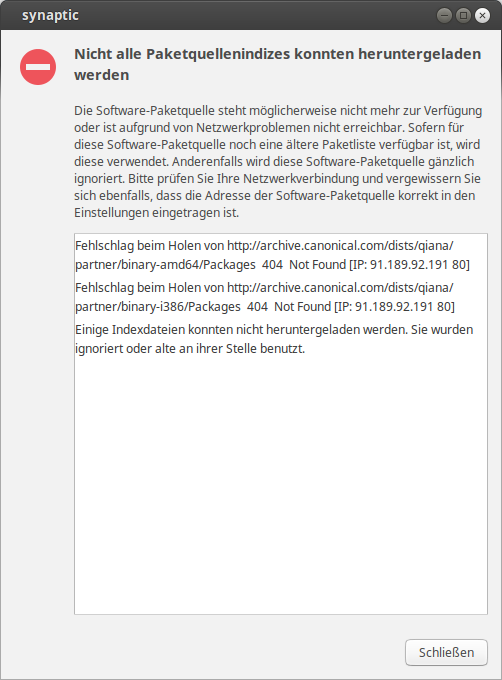
Fehlschlag beim Holen von http://archive.canonical.com/dists/qiana/partner/binary-amd64/Packages  404  Not Found
Dann wird diese Quelle nicht mehr unterstützt, es ist die falsche oder es gibt momentan Server-Probleme.
Hier könnte Ihr vorhandene löschen aber auch neue hinzufügen. Solltet Ihr euch hier nicht sicher sein, dann einfach fragen.

Ende Juni 2015 wird Linux Mint 17.2 Rafaela mit Cinnamon 2.6 erscheinen. Dies könnt Ihr dann nach diesem Muster einfach installieren aber bedenkt immer dabei, dass das nur möglich ist, wenn eine Update von 17.1 auf 17.2 durchgeführt wird. Beispiel: Eine Update von 17.1 auf 17.3 wäre nicht möglich.
